On the Subject of Corrupted Numbers

It’s not a bug, it’s a feature.

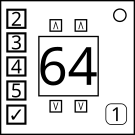
  • This module shows a two-digit number on the display.
  • The numbered buttons labeled “2”, “3”, “4”, and “5” will affect the module in a variety of different ways.
  • These buttons are also used to advance stages, and can only be pressed in the stage that is one less than its label. For example, the button labeled “2” can only be pressed correctly in the first stage.
  • Pressing these buttons during the wrong stage will result in a strike.
  • On the last stage, press the button labeled “✓” to submit. If the entered answer is correct, the module will disarm.
  • The display on the bottom right of the module is the stage indicator, and displays the current stage number.

Stage 1:

The following rules use the original number on the display. Use this number to obtain a new two-digit number. If an obtained digit in the new number is greater than 9, modulo the digit by 10.

  • If the original number is less than 50, the first digit becomes the last digit of the serial number, and the second digit becomes the number of batteries.
  • If the original number is 50 or more, the first digit becomes the first digit of the serial number, and the second digit becomes the number of ports.

Take this new number and follow every rule below that applies in order. Once complete, if the two-digit number is greater than 99, modulo it by 100. If the number is less than 0, add 25 until it’s positive.

  • If there are vowels in the serial number, add each vowel’s alphabetic position to the number (No, “Y” doesn’t count).
  • If there is an RJ-45 port, multiply the number by 2.
  • If there is a Stereo RCA port, half the number and round it to the nearest whole number.
  • If there is a BOB indicator, subtract 86 from the number. If the indicator is lit, then only subtract 43.

To change the number on the module, press the directional buttons above and below each digit to add or subtract one to that digit, respectively.

Once the number has been changed, press “2” to progress to stage 2 and corrupt the module for the first time.
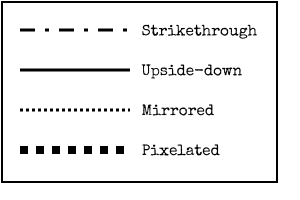
Stage 2:

Result: The digits have changed. They have colors now. That’s it.

  • Use the table below to determine what to add or subtract to each individual digit.
  • For each digit, find the intersection on the table of its color and the number of batteries.
  • Modify the digit with the number obtained from the table, and take each digit modulo 10.
  • Enter this new number into the module the same way as in stage 1.
0 1 2 3 4 5+
White ±0 ±0 ±0 ±0 ±0 ±0
Red +3 +2 +3 -1 -2 ±0
Green +1 -3 +2 +2 -1 -2
Blue -1 +3 -1 +1 -3 -3
Yellow +2 -2 +3 +3 +3 +3
Magenta ±0 +1 ±0 -3 ±0 -1
Cyan -2 ±0 -3 ±0 +1 +1
Orange -3 -1 +1 -2 +2 +2

After making changes to the number, press “3” to proceed to stage 3 and corrupt the module for the second time.

Stage 3:

Result: The buttons’ functions have changed.

  • Use the diagrams below to determine what each digit should be changed to.
  • Take each digit modulo 10, and enter the new number into the module.
  • Identify which diagram to use by observing the new functions of the directional buttons. The positions of the buttons on the diagrams correspond to the positions of the buttons on the module.
1∧ 1∨ 1st: Number of lit indicators.
2∧ 2∨ 2nd: Number of D batteries.
1∨ 2∨ 1st: First digit of the serial number.
1∧ 2∧ 2nd: 4.
2∨ 1∧ 1st: Number of battery holders.
1∨ 2∧ 2nd: Number of ports.
2∧ 1∧ 1st: 8.
2∨ 1∨ 2nd: Number of AA batteries.
1∨ 2∧ 1st: Leave it as is.
1∧ 2∨ 2nd: Last digit of the serial number.
2∧ 2∨ 1st: First letter of the serial number*.
1∨ 1∧ 2nd: Number of unlit indicators.
2∨ 1∨ 1st: Number of modules.
2∧ 1∧ 2nd: Number of port plates.
1∧ 2∧ 1st: Number of indicators.
1∨ 2∨ 2nd: Number of batteries.
Key
1 1st digit
2 2nd digit
Add 1
Subtr. 1
After changing the digits, press “4” to advance to stage 4 and corrupt the module for the third time.

* A letter refers to its alphabetic position.

Stage 4:

Result: Well, the buttons are fixed, but the numbers are going crazy.

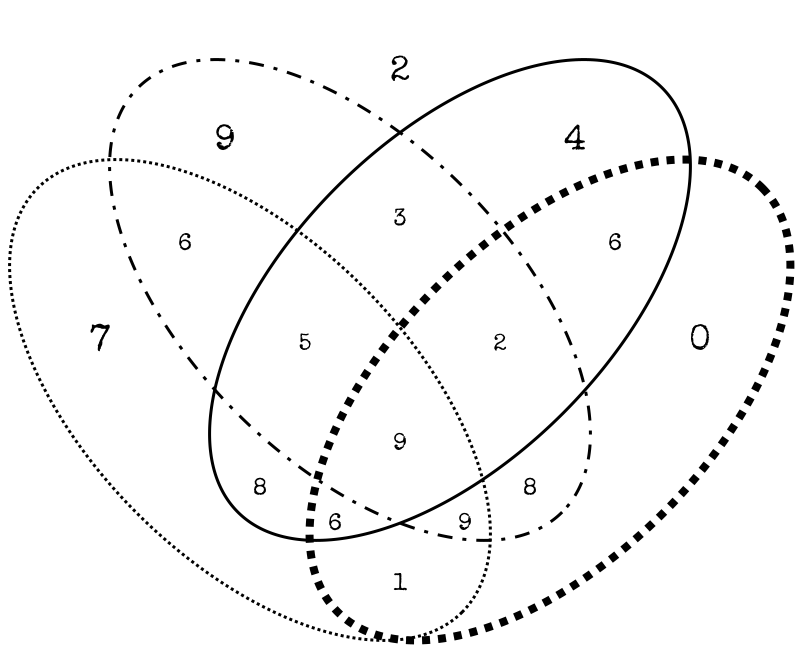
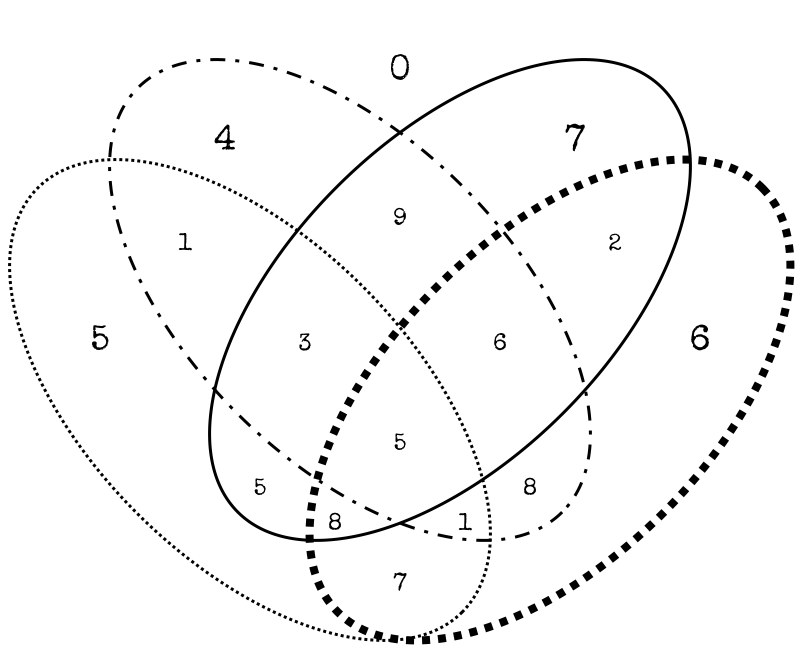
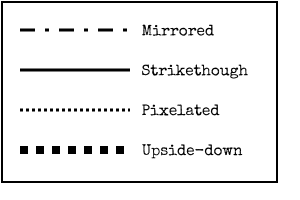
  • Observe the effect of each digit on the module.
  • Use the Venn Diagrams to determine the new digits to enter into the module.

1st Digit:

2nd Digit:

After replacing the digits with the new ones, press “5” to proceed to the final stage and corrupt the module for the 4th time.

Stage 5:

Result: True chaos. The display looks ready to shatter into pieces. None of this makes any sense.

  • The numbers have been replaced by symbols, glitchy characters, and things of that nature.
  • Use the table on the next page for translating the characters on the display into numbers.
  • The digits now cycle in a random order when pressing the directional buttons. Each digit from 0-9 will have an equivalent shown on each side of the display exactly once.
  • The directional button’s functions have also changed again. The stage indicator will denote the intentional function of the button by displaying “∧” or “∨” after a button is pressed.

How to solve:

  • Start by translating the number on the display shown at the start of this stage.
  • Press the top-left button and translate the new number shown on the display, then add it to the original number.
  • Repeat this process with the top-right, bottom-left, and bottom-right buttons in that order. You should obtain a sum of five values.
  • Locate the diagram from stage 3 that corresponds to the directional button’s functions for this stage.
  • Starting from the top diagram being 1 and moving downwards, take the position of the matching diagram and multiply it to the calculated value.
  • Modulo this number by 84 and enter it into the display.

After you finish inputting the numbers, press “✓” to submit, and glitch the module into oblivion. Oh, yeah, your objective was to break this thing.

Character on Display # Character on Display #
Ω / € / γ 2 # 9
≈ / √ / … 4 * 8
≥ / ‰ / ß 3 A number in any other font besides Ostrich Sans Heavy‡ 6
π / $ / ^ 7 ← / ↑ / → / ↓ 4
™ / ∆ / ¶ 1 Any port name 1
∫ / ∏ / α 8 Rapidly cycling through digits 0-9 6
≠ / ¡ / ø 9 Rapidly cycling through random letters 9
∑ / ¥ / µ 6 Random white pixels* 5
- / ∞ / • 0 Rapidly cycling through digits 0-9, and rapidly changing color^ 2
£ / » / ƒ 5 All numbers stacked on top of each other 7
Static* 3 Any number but rapidly changing color^ 8
? 2 Random multicolored pixels^ 4
X 5 Any letter but rapidly changing color^ 0
Display is blank* 7 Rapidly cycling through 0-9 and A-Z 3
A random letter 0 Any normal digit† 1

* Color is white by default.

^ Modify the obtained digit using the table on stage 2. Where white equals 0, move down the amount of rows corresponding to the last digit of the serial number. If you surpass the bottom color of the table, start moving up instead. Use the obtained color on the table to modify the digit.

† A normal digit is white with no glitches whatsoever.

Ostrich Sans Heavy looks like this.