On the Subject of Wordpaths
Not all who wander are lost.
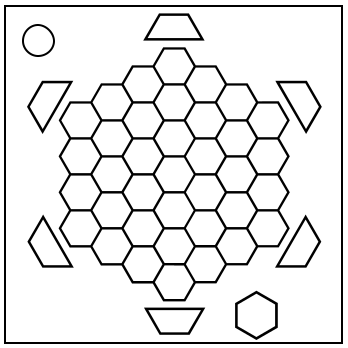
On the module is a hexagonal grid of cells, each labelled with a single letter.
Note the letters in the cells and their arrangement before pressing the hexagonal button.
When the button is pressed, the grid will recede into the module and a flashing arrow will appear in its place.
This arrow flashes a sequence of moves from an unknown starting cell forming a path:
- Each move goes to the adjacent cell in the direction the arrow is pointing.
- At no point does the path leave the grid.
The arrow will turn blue exactly five times before the sequence repeats.
The letter in the starting cell followed by the letters of the cells landed on after each blue-arrowed move, in order, spell out one of the six letter words in Table X.
Once the path is traced and the word found, assign a cardinal direction from Table P according to conditions satisfied by the path.
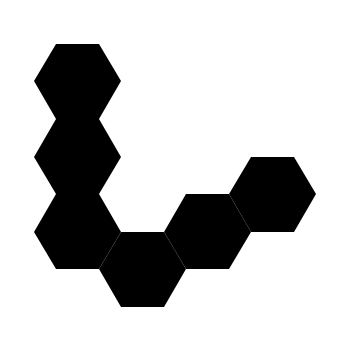
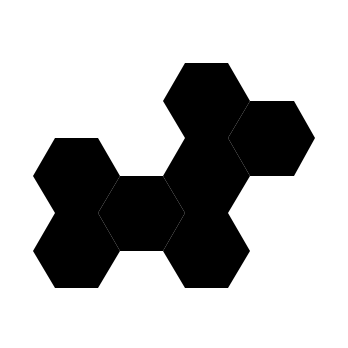
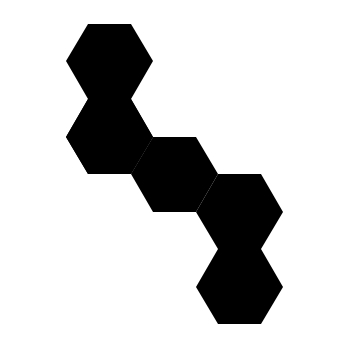
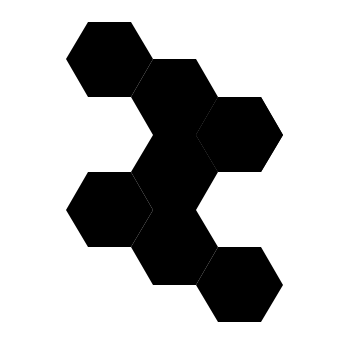
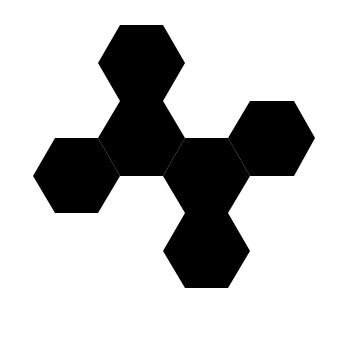
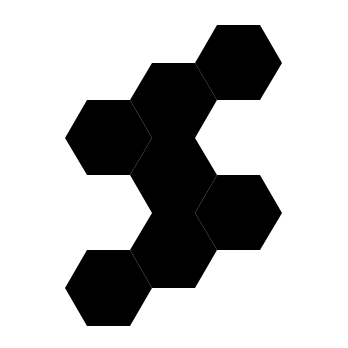
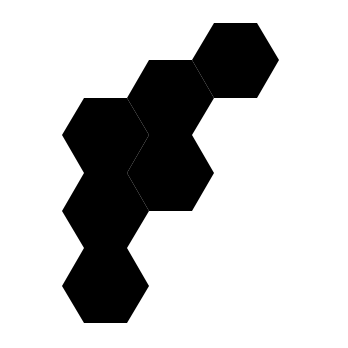
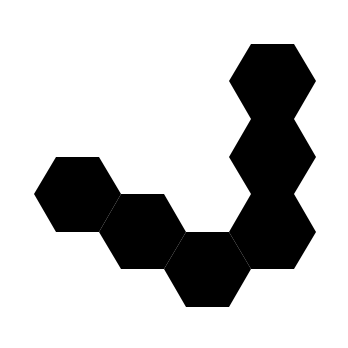
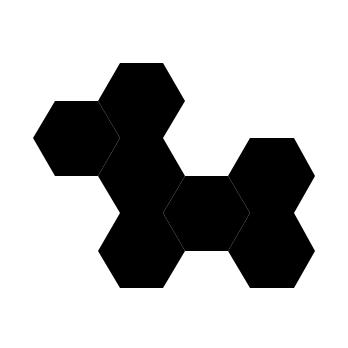
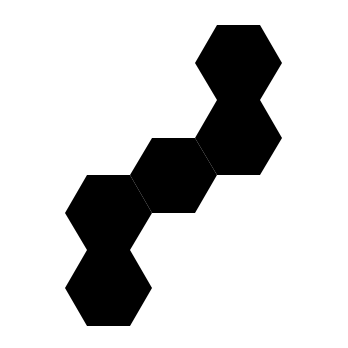
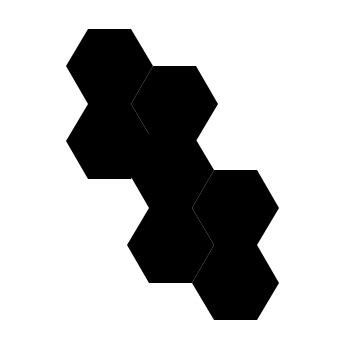
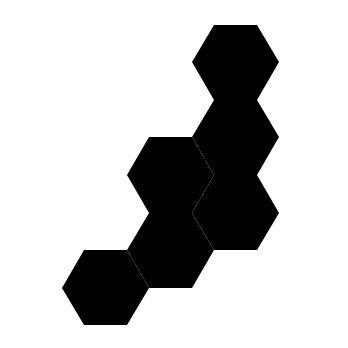
In Table X, move one space from the obtained word in the assigned direction, wrapping around the edges of the table if necessary, to obtain a polyhex.
Pressing the hexagonal button again will stop the sequence and a letterless grid will emerge with the center cell highlighted in white.
In this state, pressing one of the outer buttons will move the highlight to the adjacent cell in the direction it is pointing.
Pressing the hexagonal button once more will cause cells that are visited from this point on to be highlighted in blue.
- The boundary of the cells in the highlighted region must match the obtained polyhex.
- The highlighted region must contain exactly one of cells from which the word was obtained.
- This cell must be highlighted in white.
Press the hexagonal button one final time to submit the highlighted region.
If the submission meets all of the above criteria, the module is solved.
Otherwise, the module will reset to its initial state, removing all highlights from the grid and revealing the letters once again.